Message Center
Message Center
Updated March 15, 2026
Overview
The Message Center is an inbox for system notifications and alerts. It collects important events like trigger alerts, failed registration attempts, and available server updates, into one place so nothing gets missed. Sysadmin teams work together in addressing messages generated by the system.
Accessing messages
Click the Inbox icon in the sidebar. A red badge shows your unread message count (updates in real time). The badge disappears when all messages are read.
Reading messages
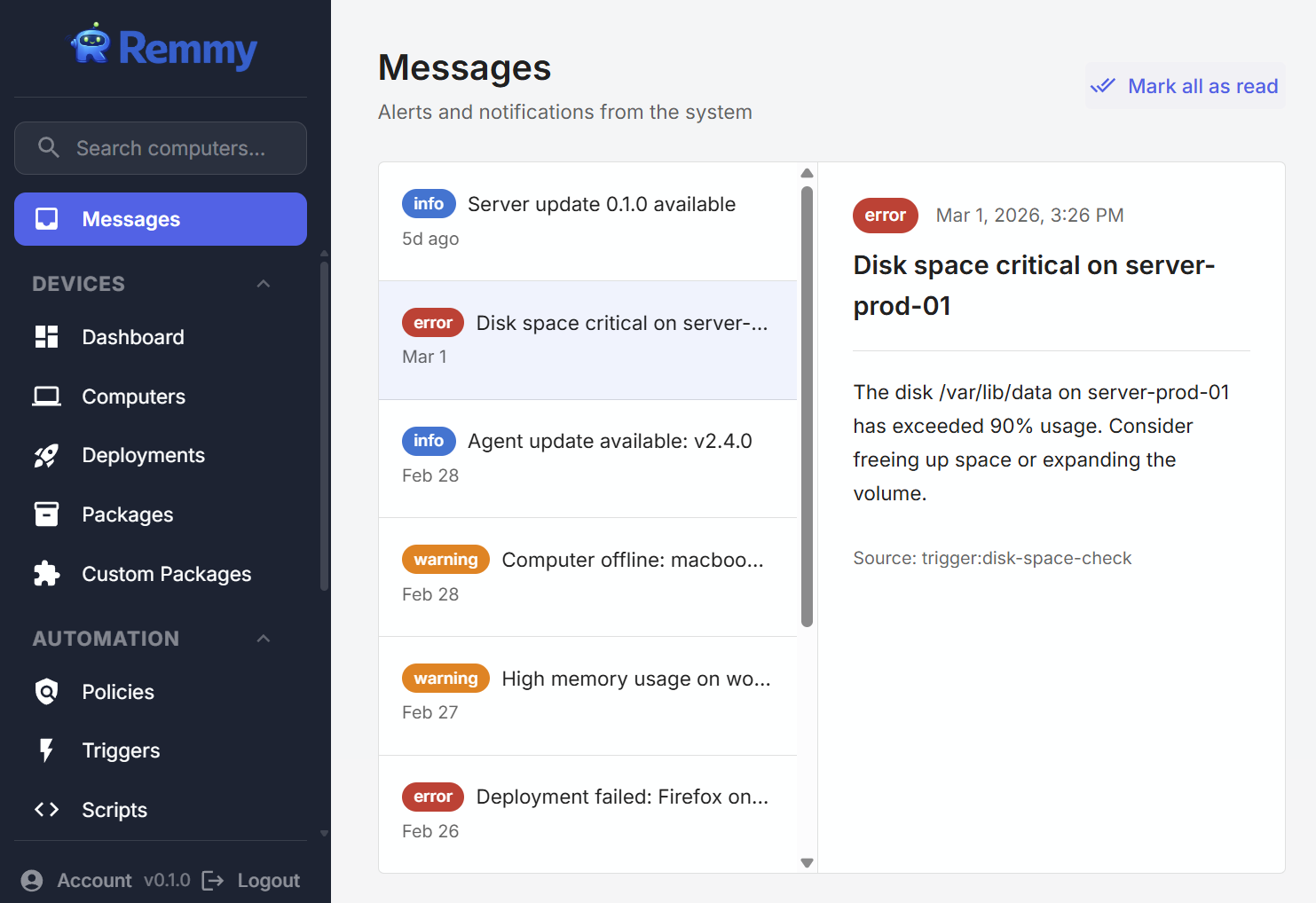
The Message Center uses a split-pane layout:
Left panel - A list of all messages, newest first, showing the severity badge, title, and relative time ("just now", "5m ago", "2h ago", etc.). Unread messages are highlighted with a light blue background and bold text.
Right panel - The full detail of the selected message, including the title, body, severity, timestamp, source, and any associated links. Click a message in the list to view its details. Viewing a message automatically marks it as read.
Message severity
Each message has a severity level shown as a colored badge:
| Severity | Color | Meaning |
|---|---|---|
| Info | Blue | Informational notices (e.g. a new server update is available) |
| Warning | Orange | Something that may need attention (e.g. a trigger alert, a revoked token was used). |
| Error | Red | Something went wrong that requires attention |
Where messages come from
Messages are created automatically by the system. There are three sources:
Trigger Alerts When a trigger has a Create Alert action configured, it creates a message each time the trigger fires. These messages include the alert title and body you defined in the trigger, along with the name of the computer that triggered it.
Revoked Token Registration Attempts When a computer tries to register using a registration token that has been revoked, a warning message is created. This helps you detect unauthorized or stale registration attempts.
Server Update Notifications When a new version of the Remmy server is available, an info message is created with the version number and a description of what's new. The message includes a link to the Settings page where you can apply the update.
Managing messages
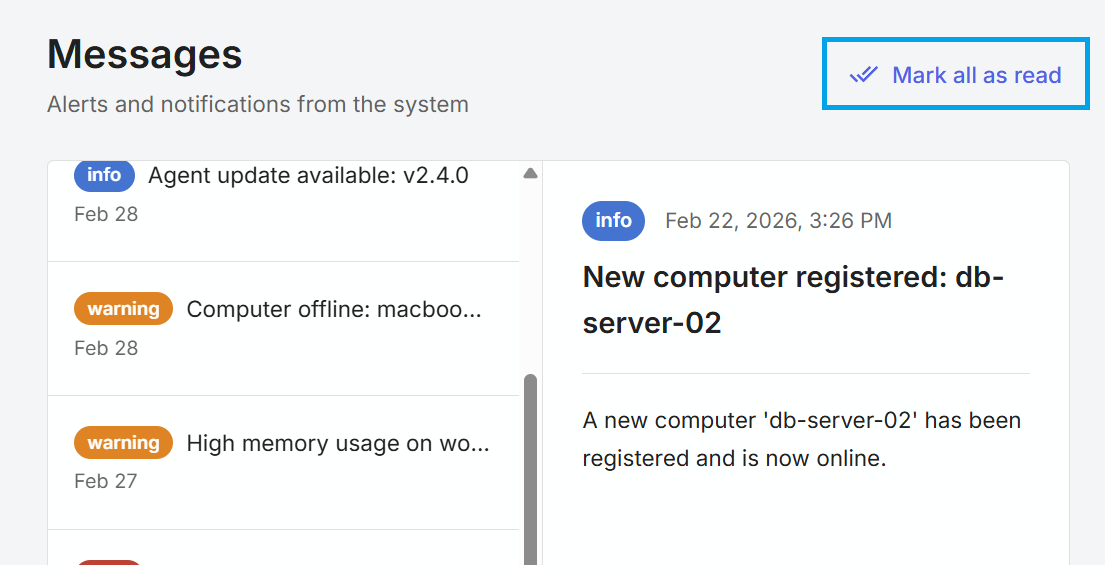
Mark All as Read Click the Mark all as read button at the top of the message list to clear all unread indicators at once.
Links in Messages Some messages include links that take you to a relevant page in the app. For example, a server update message links to the Updates settings page. Links appear as buttons in the message detail view - internal links open within the app, and external links open in a new tab.