
Computer Reboot
Computer Reboot
Updated March 31, 2026
Overview
Sysadmins can remotely trigger computers to reboot using the remote restart action. This action can be performed on a single computer at a time, or in mass across multiple computers at once. Sysadmins can optionally give users the option to postpone the reboot, or force the computer to be rebooted immediately.
Initiating reboot
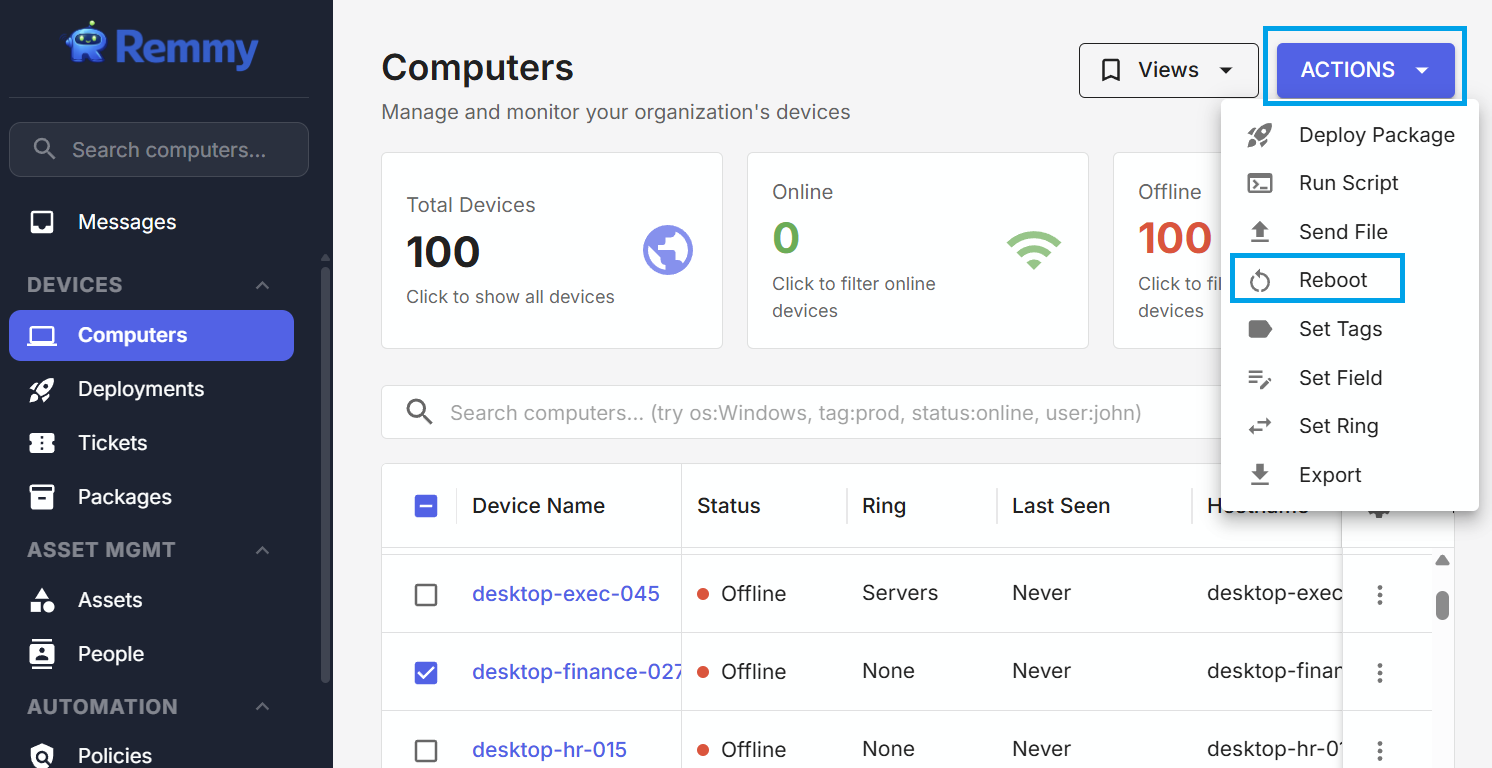
A sysadmin can initiate a computer reboot by clicking the action button and clicking Reboot. Sysadmins can also apply a mass reboot to target computers by selecting them on the computer list page. A reboot does not automatically occur until a sysadmin user confirms the action. Computers can also be rebooted directly from tickets.
Reboot confirmation
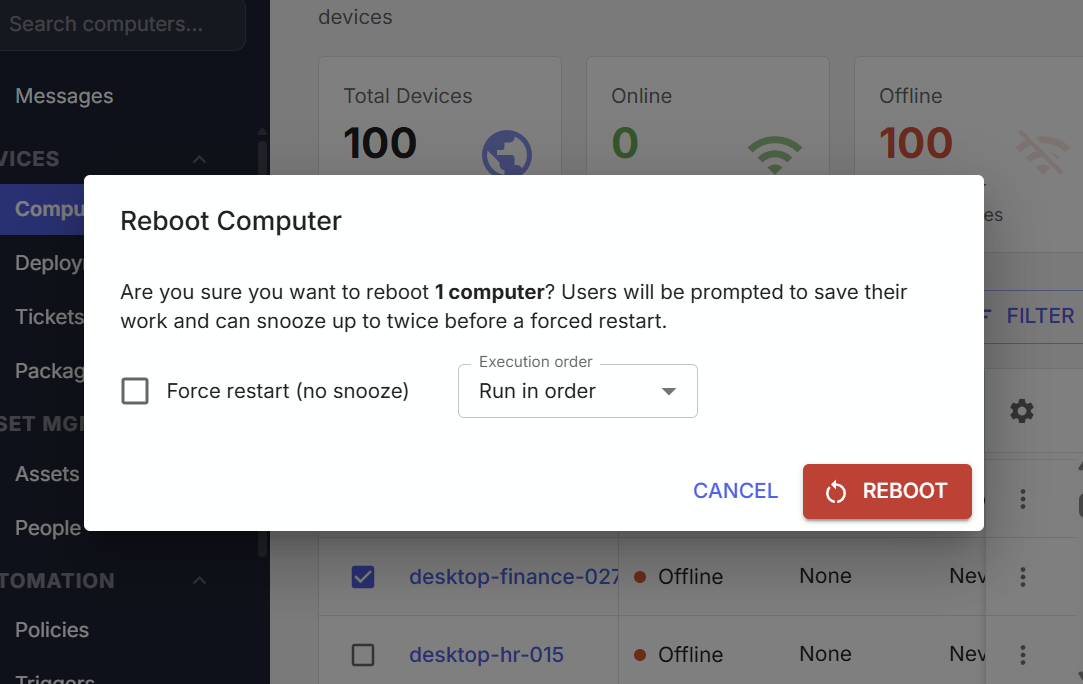
When a sysadmin clicks to reboot a computer, a confirmation screen is shown confirming the action. By default, Remmy gives users two opportunities to delay a restart, for a maximum of up to three hours. Checking the "force restart" checkbox will cause all a message to appear to selected computers, giving them notice that the computer will be restarted in ten seconds.
Permissions / audit log
For a Sysadmin to be able to use the reboot feature, they must have the Run Scripts permission enabled. Any reboot actions are logged in the audit log, and shown in the activity tab on individual computers.
Offline computers
If the target computer is not currently connected to the Remmy server, the reboot command is saved with an "unsent" status. When the computer reconnects, the agent checks whether the computer has already been rebooted since the command was created (by comparing boot time). If it has, the stale reboot is skipped automatically - so a computer that was already restarted won't be rebooted again unexpectedly.