
Deployment Rings
Deployment Rings
Updated March 15, 2026
Overview
Rings are groups that let sysadmins organize computers into deployment stages and apply different software policies to each group. A common setup is to have a small "Canary" ring for testing updates, a "Pilot" ring for broader validation, and a "Production" ring for all remaining machines.
- Every Remmy server starts with a Default ring.
- Each computer belongs to one ring.
- Each ring has its own independent set of policies that control software installation and updates.
Managing rings
Rings are managed from the Policies page, where they appear as tabs across the top. Each tab shows the policies configured for that ring. When a computer is assigned to a ring, it will be evaluated against the policies in the ring.
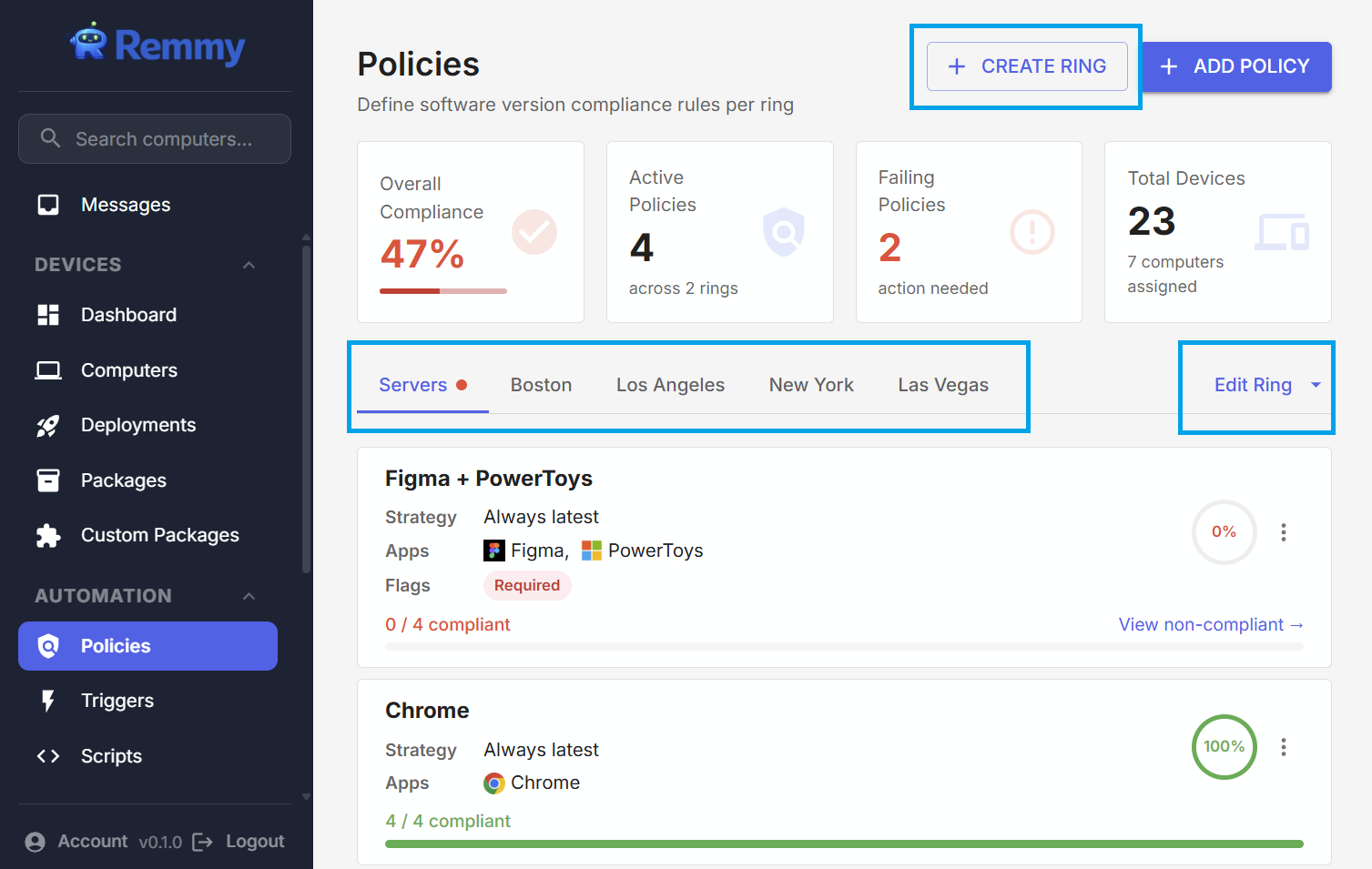
Creating a ring On the Policies page, click the + button next to the ring tabs. Enter a name for the ring. The new ring starts with no policies - policies configure those separately.
Renaming a ring Open the ring's action menu and select Rename. All rings can be renamed, including the default ring.
Deleting a ring Open the ring's action menu and select Delete, when a ring is deleted all computers in the ring are moved to the default ring, and all policies are immediately deleted.
Assigning computers to rings
There are four different ways to assign a computer to a ring:
From the Computer Detail Page On a computer's detail page, use the Ring dropdown to select a ring.
Mass Action On the Computers list page, select multiple computers, then use the Set Ring bulk action to move them all to the same ring.
Learn more about mass actions.
Agent installation token When creating a registration token, you can specify a ring. Any computer that registers using that token is automatically placed in that ring. This is useful for provisioning - create a token for each site or department and computers are organized as they come online.
Learn more about the Remmy installation tokens.
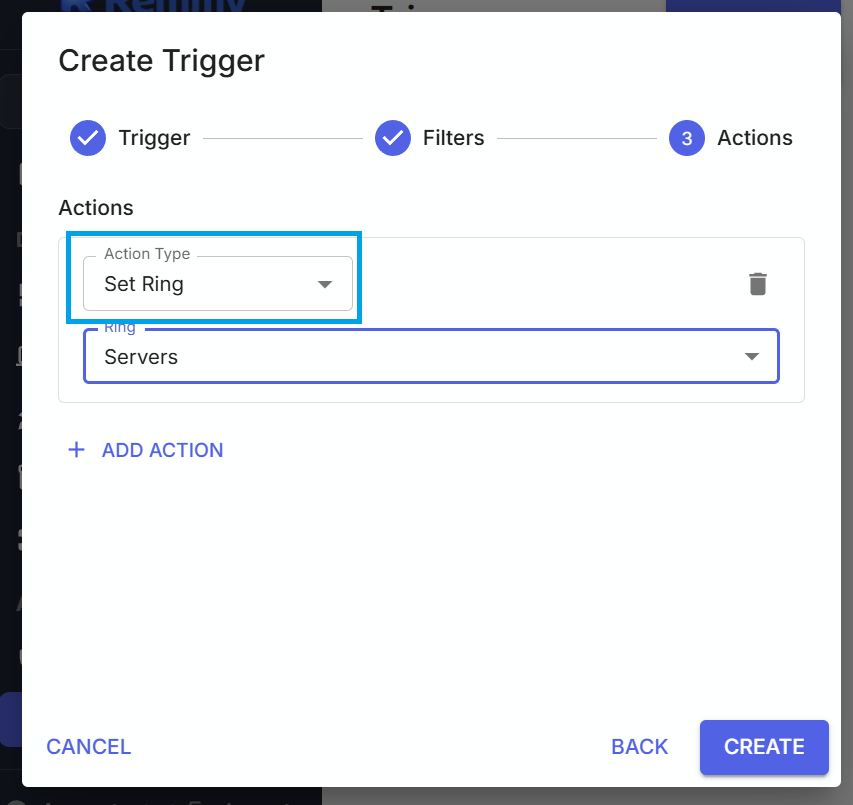
Triggers Create a trigger with a Set Ring action to automatically move computers between rings based on events. For example, a user could move a computer to a "Needs Attention" ring when it comes online after being offline, or move newly registered computers to a specific ring based on filter criteria.
How rings relate to policies
Policies are always created within a specific ring. Different rings can have completely different policy configurations. This is what makes staged rollouts possible - but rings do not have to only be used for staged rollouts:
- Canary ring: Policy set to "Always latest" - gets updates immediately
- Pilot ring: Policy set to "Latest after 3 days" - gets updates after canary validation
- Production ring: Policy set to "Latest after 7 days" - gets updates after pilot validation
- Each ring can have at most one "Everything Else" policy (covering all software not addressed by specific-app policies).
Common ring strategies
Staged rollout - Create rings like Canary, Pilot, and Production. Set progressively longer update delays on each ring's policies. Assign a few test machines to Canary, a broader group to Pilot, and everything else to Production.
By location or department - Create rings like "Office - NYC", "Office - London", "Remote Workers". Apply location-appropriate policies to each.
By role - Create rings like "Developers", "Design", "Finance". Developers might get permissive policies while Finance gets strict compliance policies.
Automated classification - Use triggers to move computers between rings based on events or conditions, combined with filters on tags, custom fields, or OS type.